
This tutorial guides you through exporting and analyzing audience data using Bear Analytics.. You will learn how to navigate the interface and extract key metrics for your reports.
Login to your Bear IQ Dashboard at app.beariq.com
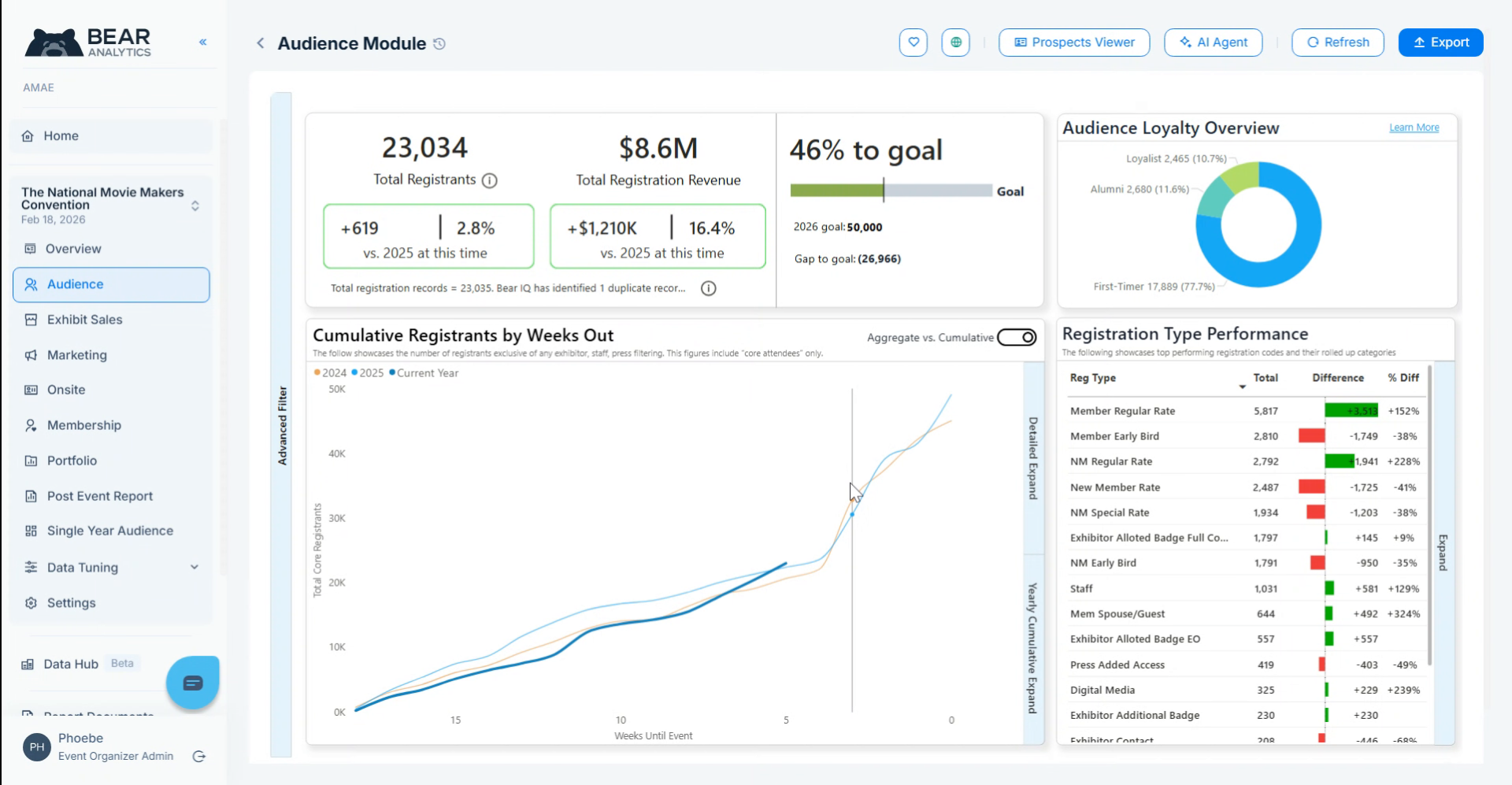
2. Access Bear Analytics Dashboard
One of the cornerstones of Bear IQ is the ability to pull any metrics or data from the module. Let's say you're interested in exporting the registration type category performance metrics at this point in time.
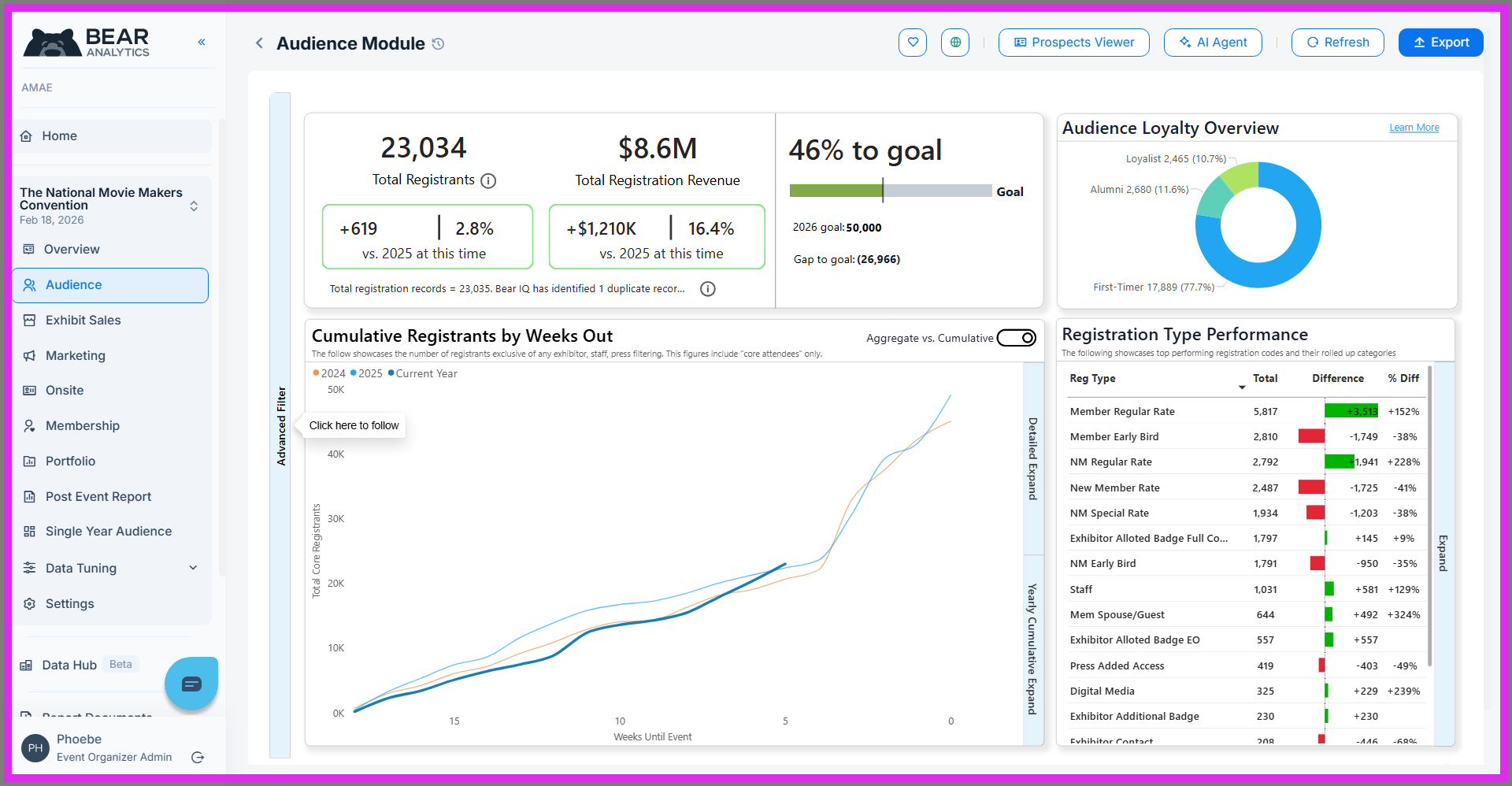
3. Initiate Export Process
Click "Export" to start the process of exporting your selected data from Bear Analytics.
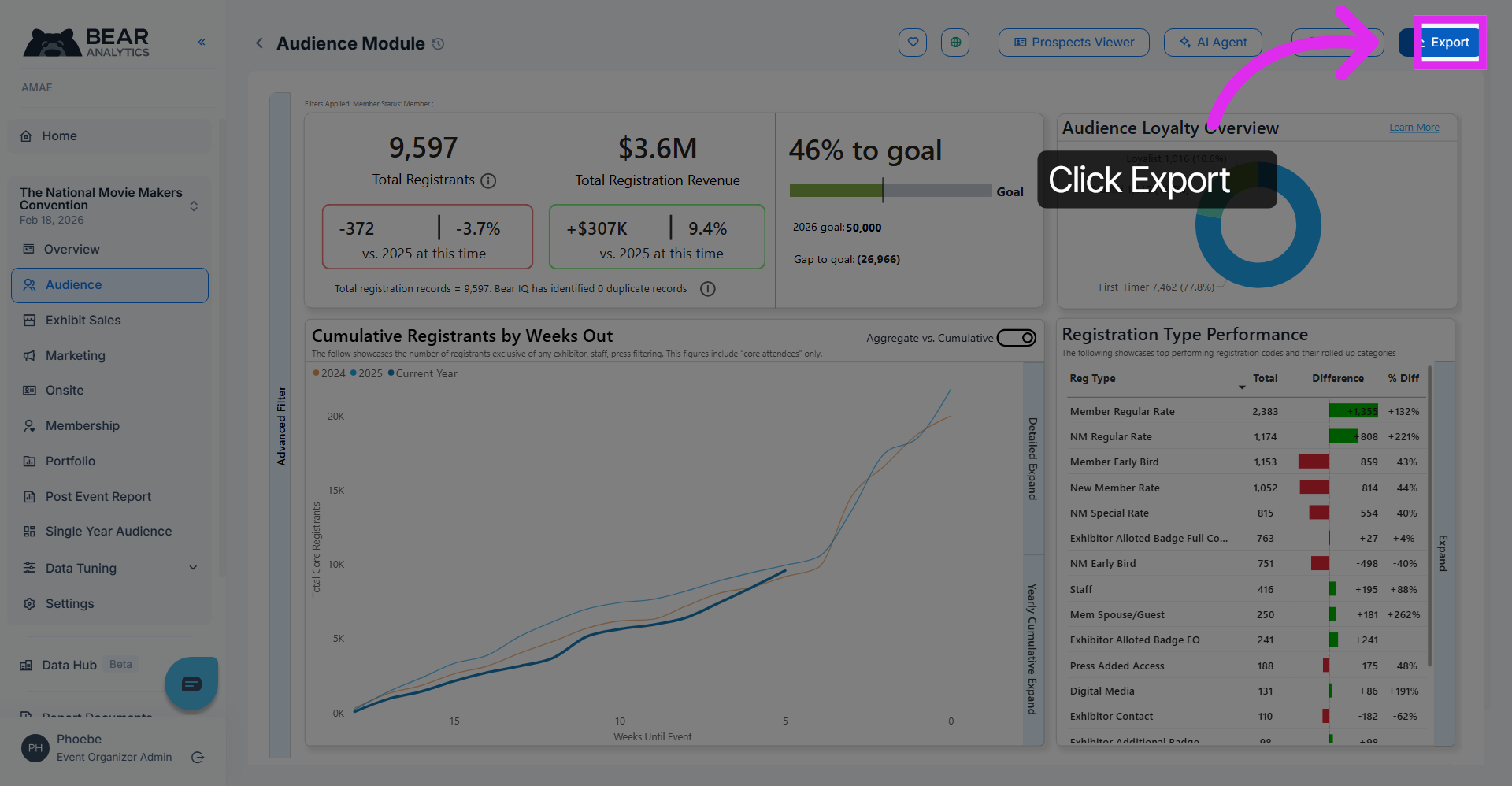
4. Choose an Export Format
Click "Excel" to specify that you want to export your data in Excel format for easier analysis. Exporting as an image, into a powerpoint, or as a pdf are also available options.
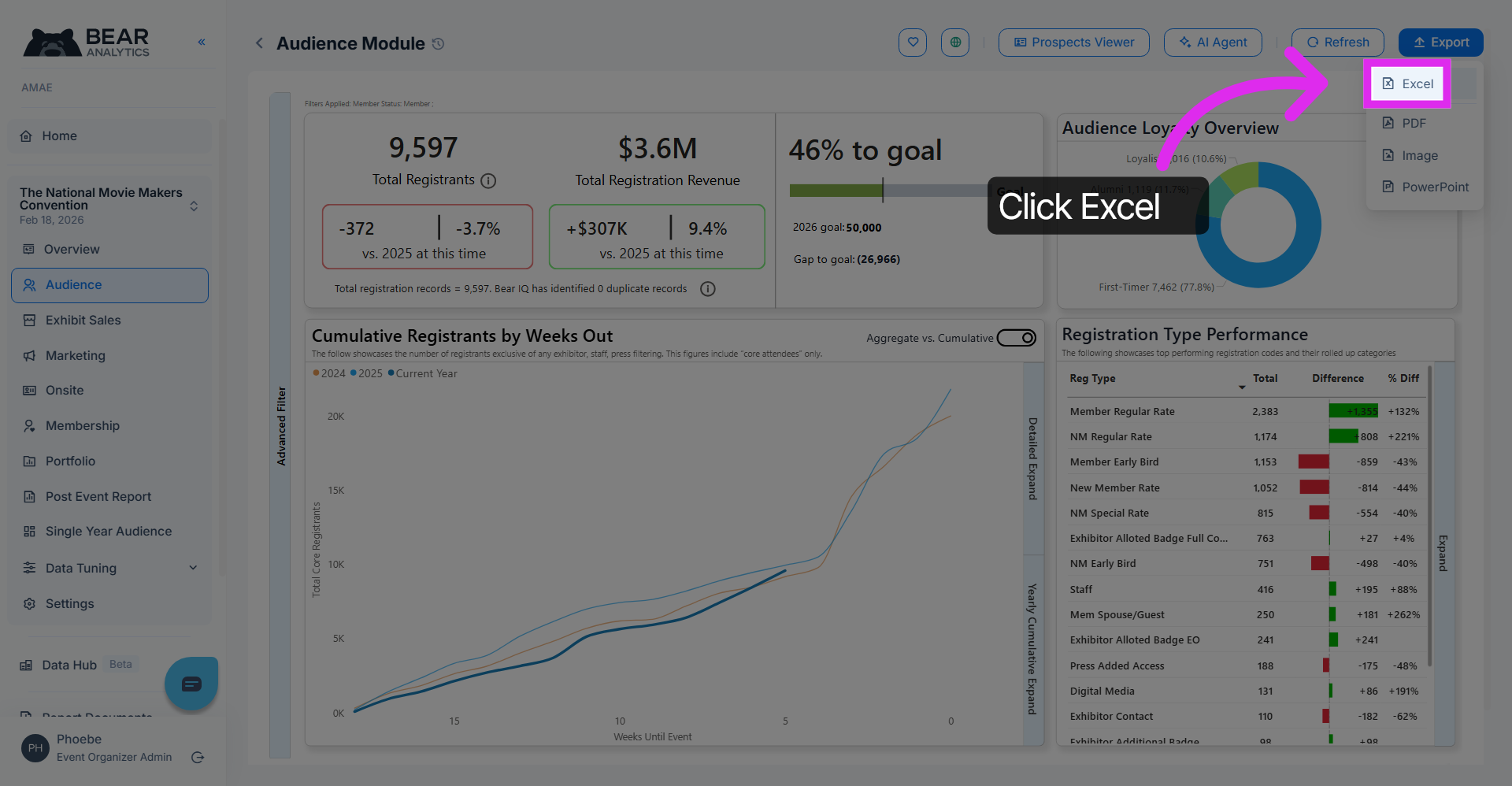
5. Confirm Export Settings
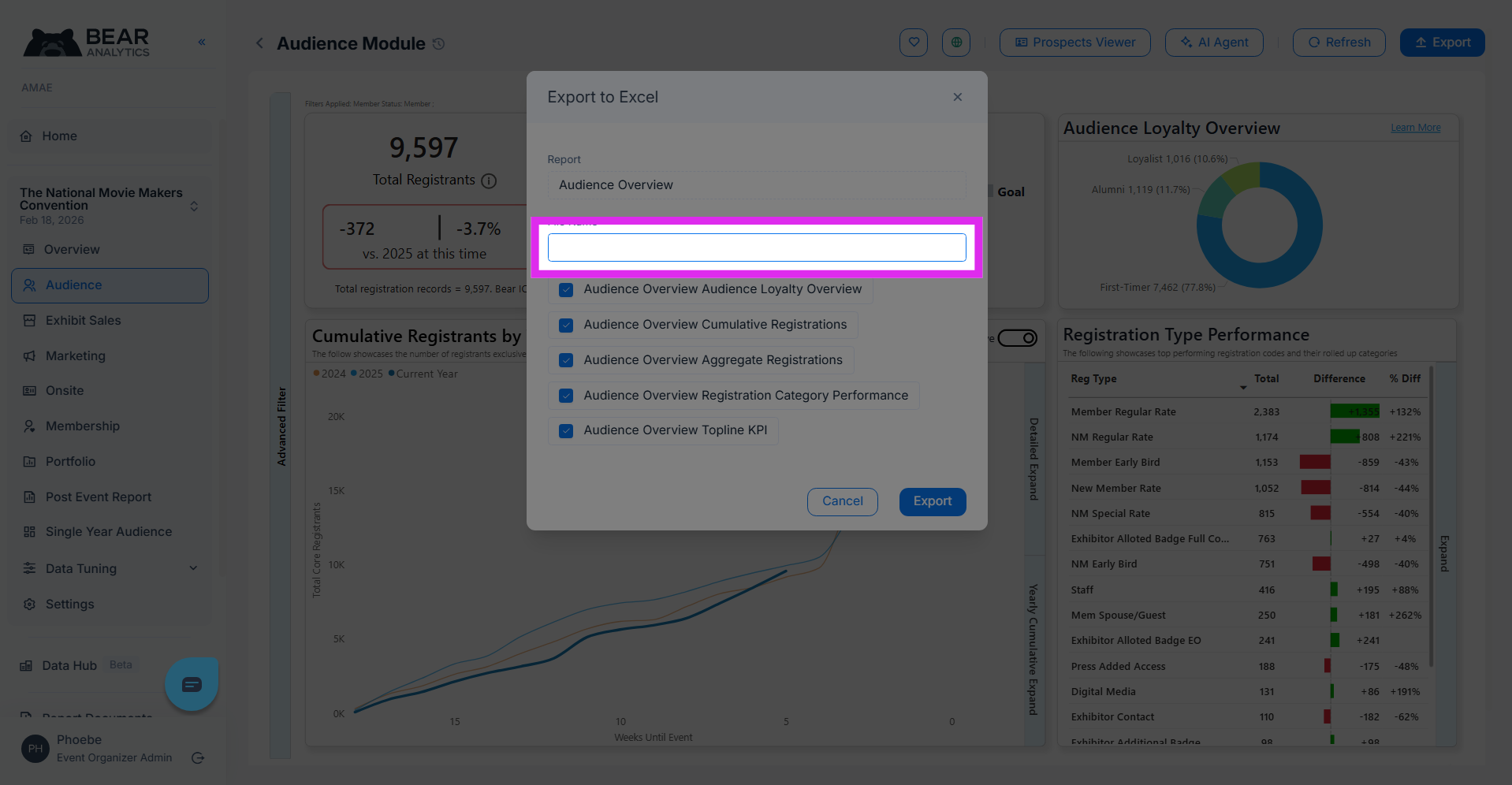
Give your export file a title here
6. Export Finalized Data
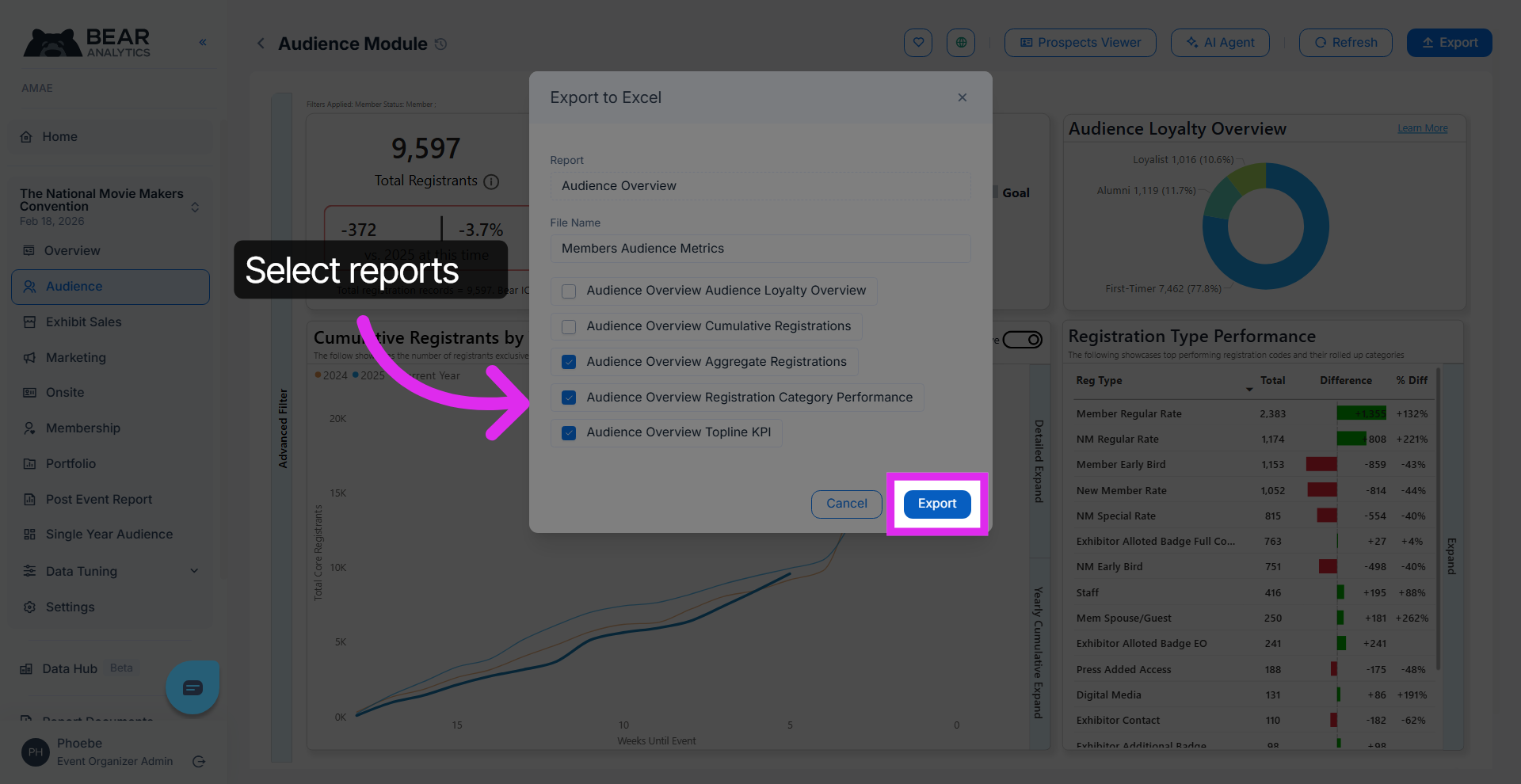
Click "Export" to finalize and download your selected audience data from Bear Analytics.
7. Download file
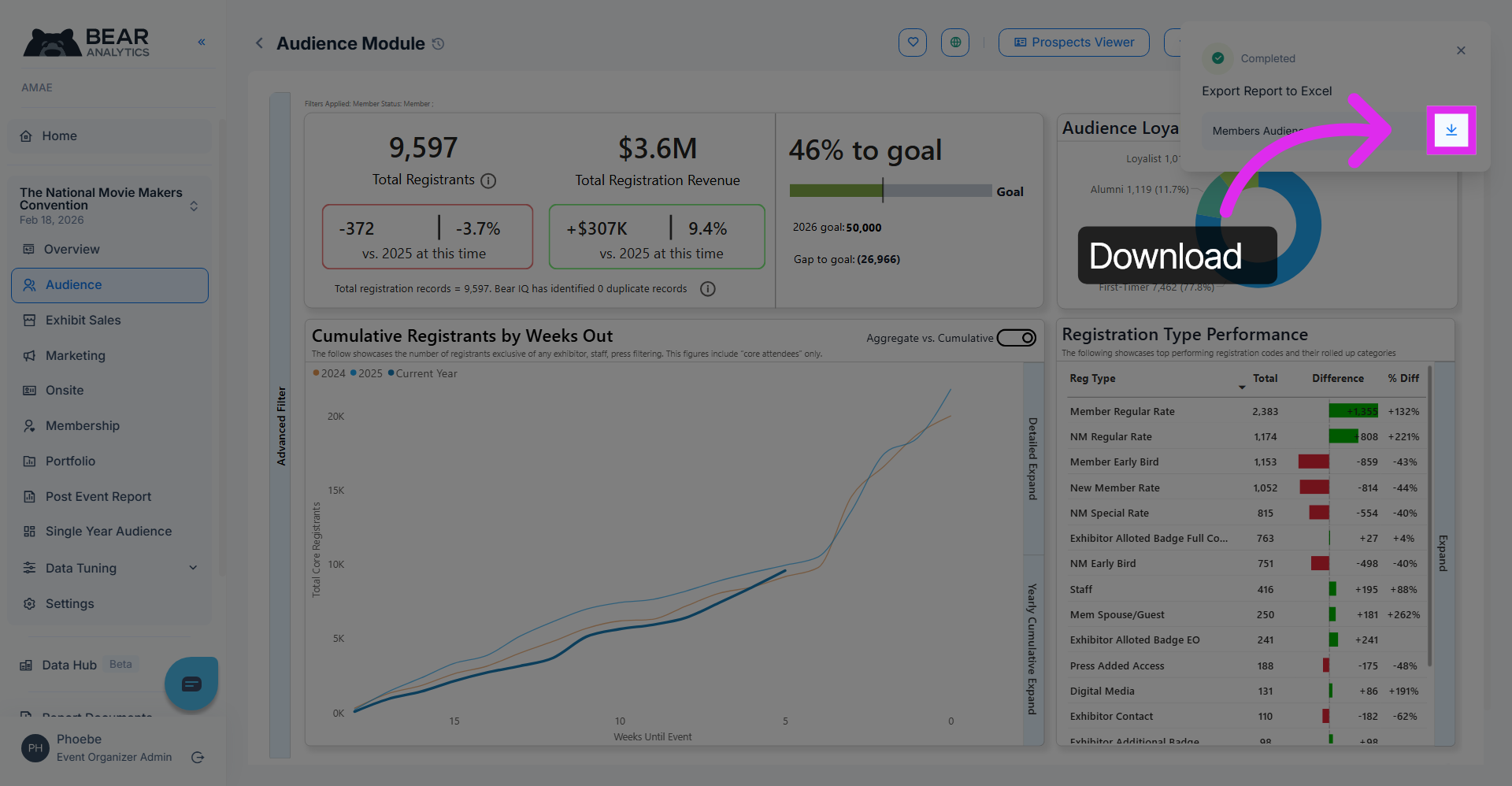
Once the export is complete, click here to download your file.
You have successfully exported detailed audience metrics from Bear Analytics, including loyalty and registration data. Use the exported Excel file to analyze and report on your audience insights for informed decision-making.